
How to show MangoHud on every gaming with Steam Flatpak
An easy way to show performance metrics for games running using Steam Flatpak


Running games on Linux has never been easier. But sometimes you do get some issues and want to know what is happening, or just want to get some metrics for the fun of it. Here is a way you can get those metrics while running Steam through the Flatpak.
MangoHud is the go to tool for displaying metrics for games running on Linux. It's a great tool and usually available through the ditro repos. I'm using Fedora, which recently released a new version, and I just installed MangoHud using sudo dnf install mangohud. There is a simple way to enable this tool with across all games using Steam Flatpak, with another tool.

Flatseal
Flatseal is a great application to manage all the different settings related to Flatpaks. It allows you to grant permissions to Flatpaks as well as set environment variables just for that Flatpak. You can set an environment variable to enable MangoHud across all Steam games. Simply open Flatseal, find Steam in the list of applications, and scroll down to the Environment section. Click the plus icon in the Variables group, and add the following to the text box MANGOHUD=1. After restarting Steam and running any game you should see the performance metrics at the top left of your screen like below.
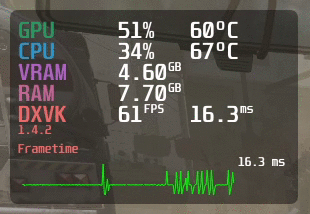
While all the data here is useful, I particularly keep an eye on Frametime to make sure my game is running smoothly. If I see many fluctuations in Frametime, I always adjust the settings to get the game play to be smooth. If you'd like to customize the amount of the information that is displayed on screen, you can use an application like GOverlay to add many more metrics than just the default.


Happy hacking 🙂